
Deep sleep control unit for ESP 32 controller
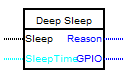
The ESP 32 card can be switched to deep sleep mode and then woken up via
certain time. This feature is especially useful if your project is tied to time (for example, performs daily tasks) and
requires low power consumption. If you switch ESP 32 to deep sleep mode, it means that it will have disabled the most
energy-intensive activities, but will continue to run the activities needed to Wake up the processor if something interesting happens.
In deep sleep mode, neither the processor nor the WiFi works, but the ULP coprocessor can still work. "ultra low power»,
I. e. "processor with ultra-low consumption").
Once ESP 32 is put into deep sleep mode, there are several ways to Wake it up:
1.With the help of a timer. It will Wake up ESP 32 after a certain amount of time.
2. With external Wake-up. There are two possibilities: awakening or with the help of one external initiator, or with the help of several external initiators.
3. With touch contacts.
This unit is used to control the transition of the controller into deep sleep mode, and the setting of Wake-up conditions
The block is configured using the block editor. In the settings of the block there are several tabs for setting different Wake up modes.
On the first tab, the need to Wake up by timer is configured, as well as the time after which the timer will Wake up the controller.
1.With the help of a timer. It will Wake up ESP 32 after a certain amount of time.
2. With external Wake-up. There are two possibilities: awakening or with the help of one external initiator, or with the help of several external initiators.
3. With touch contacts.
This unit is used to control the transition of the controller into deep sleep mode, and the setting of Wake-up conditions
The block is configured using the block editor. In the settings of the block there are several tabs for setting different Wake up modes.
On the first tab, the need to Wake up by timer is configured, as well as the time after which the timer will Wake up the controller.
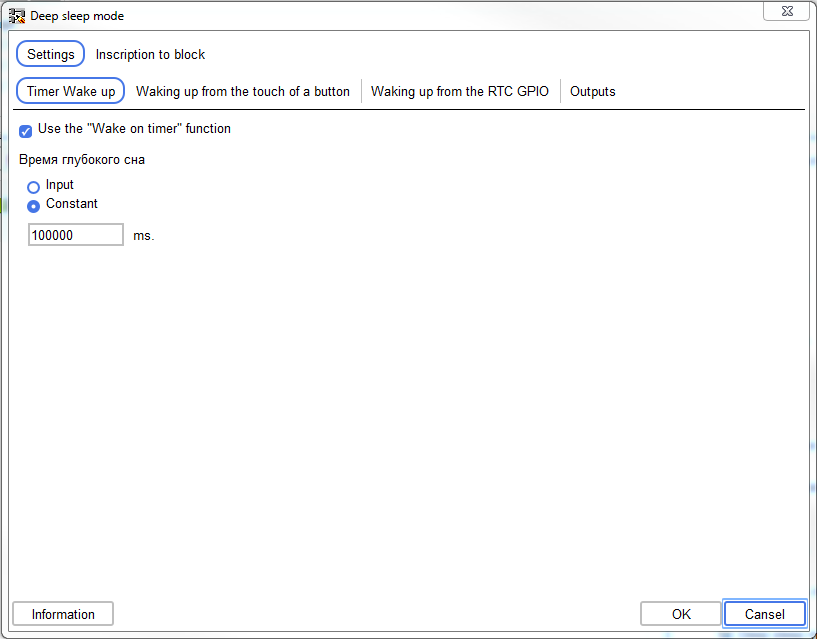
If you set the Wake-up timer, you must set the sleep time.
This can be done either by a constant or by setting this value from the input of the block ("Sleep Time").
On the second tab of the settings, touch buttons are set, from touching which the controller will Wake up.
On the second tab of the settings, touch buttons are set, from touching which the controller will Wake up.
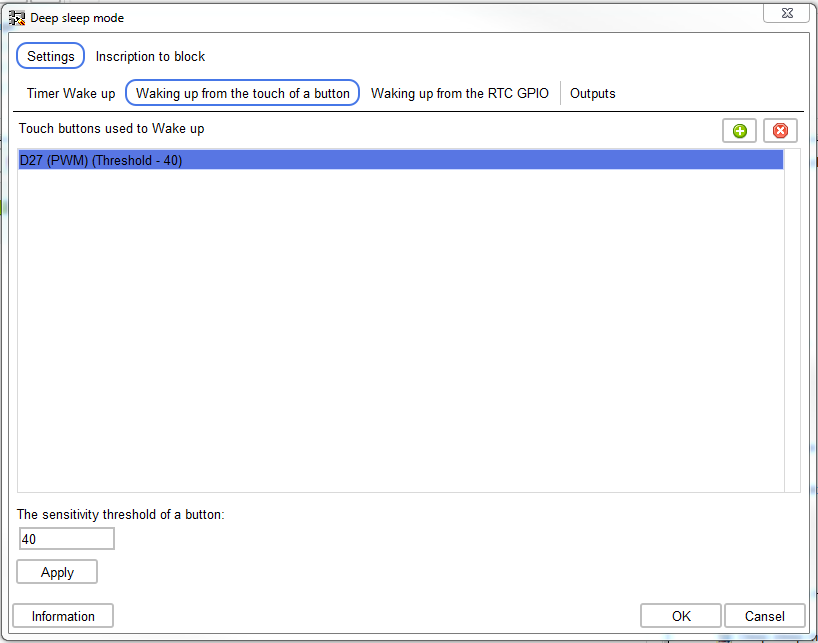
For each added touch button, you can set a trigger threshold
(calculated empirically based on the physical dimensions of the sensor). The default threshold is 40.
On the next tab, you specify the pins, the level change on which is used to Wake up the controller.
On the next tab, you specify the pins, the level change on which is used to Wake up the controller.
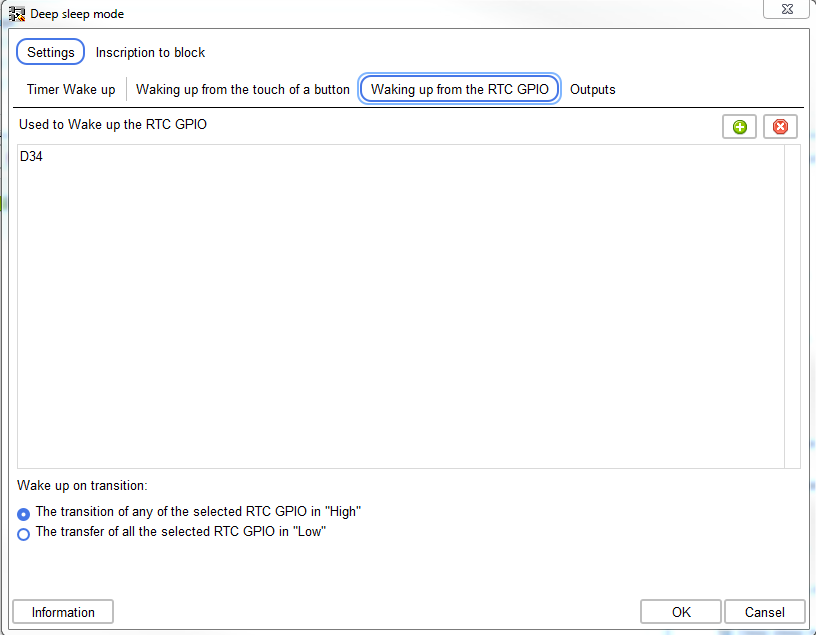
The Wake-up event is set for all selected outputs at once.
The block uses the selected pins not exclusively, that is, these pins can be used in the scheme for other purposes. The pin selected to Wake up as a touch button cannot be used to Wake up from a state change, and vice versa.
The processor falls asleep on the leading edge of the pulse at the "Sleep"input.
On the last tab, the presence of block outputs is specified.
The block uses the selected pins not exclusively, that is, these pins can be used in the scheme for other purposes. The pin selected to Wake up as a touch button cannot be used to Wake up from a state change, and vice versa.
The processor falls asleep on the leading edge of the pulse at the "Sleep"input.
On the last tab, the presence of block outputs is specified.
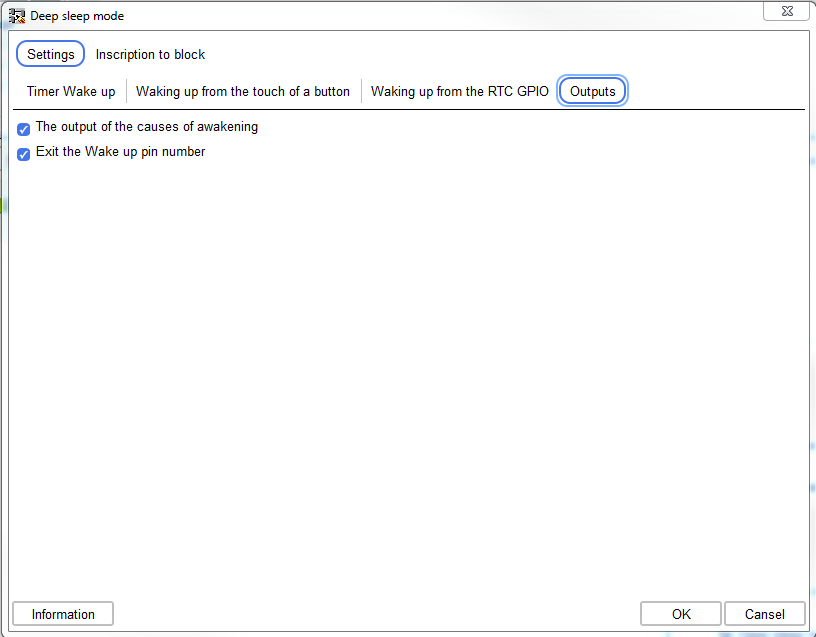
When you activate the "Wake up reason Exit" checkbox, the block has a "Reason" output, on which the code will be displayed
the reasons for the last awakening.
Wake up reason codes.
-1 –unknown cause (for example, after restarting the controller).
1 – awakening from a state change on the pin
3 – Wake up from timer
5 – waking up from the touch of a button
If at least one touch button is selected, or the output to Wake up from a state change, then this tab will appear checkbox "Exit pin number that caused the awakening".
When you activate this check box, the block appears in the output of "GPIO". In the case of awakening from the touch of a button, or change output status, this output will have the GPIO number of the output that caused the Wake-up. In other cases, it will be: -1 .
Wake up reason codes.
-1 –unknown cause (for example, after restarting the controller).
1 – awakening from a state change on the pin
3 – Wake up from timer
5 – waking up from the touch of a button
If at least one touch button is selected, or the output to Wake up from a state change, then this tab will appear checkbox "Exit pin number that caused the awakening".
When you activate this check box, the block appears in the output of "GPIO". In the case of awakening from the touch of a button, or change output status, this output will have the GPIO number of the output that caused the Wake-up. In other cases, it will be: -1 .