Main branch of the block
This branch is intended for two purposes.
1. Control the position of the block in the block package tree.
2. Create a parameter view in the block editor in the project.
For the first purpose, the upper toolbar serves.
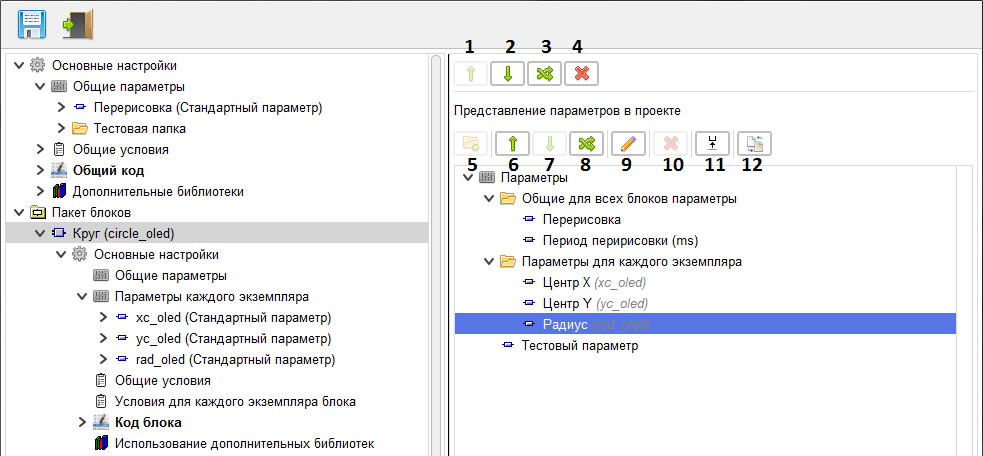
Using the Up(1) and Down buttons»(2)the block is moved within the parent folder.
Use the "Free move" button (3)to move a block to any location within the block package.
Use the "Delete block" button (4) to delete a block.
To perform the second task, use the parameter view editor.
Using the parameter view editor, you can set the type of display of block parameters in the block editor in the project. By default, they are displayed in a simple list in the order they are added to the block. The name of the root folder is always "Options" and cannot be changed.
The representation of parameters in this editor has nothing to do with their location in the block and editor parameters tree and does not affect it in any way.
Use the "Create virtual folder" button (5) to create a new virtual folder for the parameters view.
Use the Up(6) and Down buttons»(7)the selected item is moved within the parent folder.
Using the "Free move" button (8), you can move the selected item (parameter or virtual folder) to any available location (if a virtual folder is selected, it cannot be moved to itself or to the virtual folders attached to it).
Using the "Edit" button (9), you can change the name of a virtual folder, and set an alternative name for the parameter, under which it will be displayed in the block editor in the project.
Using the "Delete folder" button (10), you can delete a virtual folder, and its contents will be transferred to the parent virtual folder.
Using the "Go to parameter" button (11), you can immediately go to the main branch of the selected parameter.
Using the "Synchronize with editor tree" button (12), you can recreate the display tree according to the editor tree. Subsequent changes to the editor tree will not change the tree display until the "Sync with editor tree" button is clicked again(12). The newly created parameters will be added to the end of the parameter list.
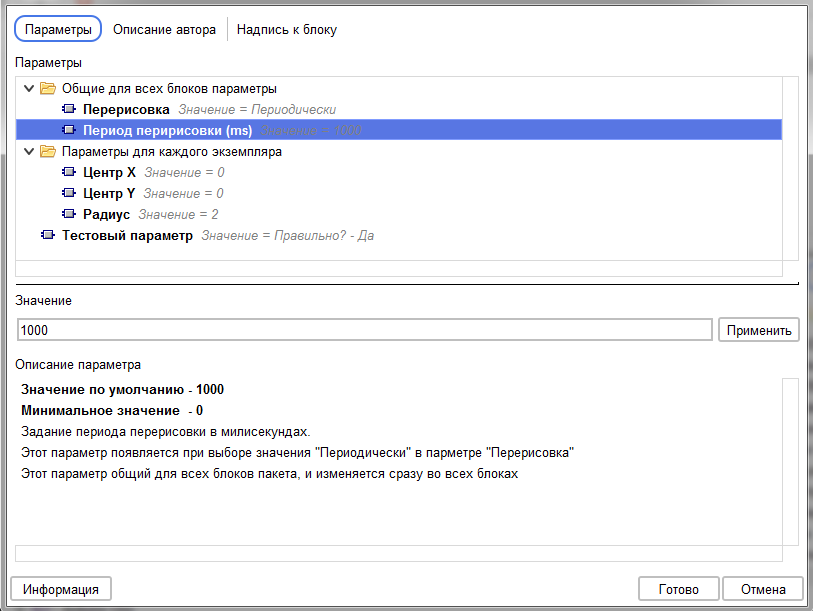
The parameters view shown above in the project block editor will look like this.
1. Control the position of the block in the block package tree.
2. Create a parameter view in the block editor in the project.
For the first purpose, the upper toolbar serves.
Using the Up(1) and Down buttons»(2)the block is moved within the parent folder.
Use the "Free move" button (3)to move a block to any location within the block package.
Use the "Delete block" button (4) to delete a block.
To perform the second task, use the parameter view editor.
Using the parameter view editor, you can set the type of display of block parameters in the block editor in the project. By default, they are displayed in a simple list in the order they are added to the block. The name of the root folder is always "Options" and cannot be changed.
The representation of parameters in this editor has nothing to do with their location in the block and editor parameters tree and does not affect it in any way.
Use the "Create virtual folder" button (5) to create a new virtual folder for the parameters view.
Use the Up(6) and Down buttons»(7)the selected item is moved within the parent folder.
Using the "Free move" button (8), you can move the selected item (parameter or virtual folder) to any available location (if a virtual folder is selected, it cannot be moved to itself or to the virtual folders attached to it).
Using the "Edit" button (9), you can change the name of a virtual folder, and set an alternative name for the parameter, under which it will be displayed in the block editor in the project.
Using the "Delete folder" button (10), you can delete a virtual folder, and its contents will be transferred to the parent virtual folder.
Using the "Go to parameter" button (11), you can immediately go to the main branch of the selected parameter.
Using the "Synchronize with editor tree" button (12), you can recreate the display tree according to the editor tree. Subsequent changes to the editor tree will not change the tree display until the "Sync with editor tree" button is clicked again(12). The newly created parameters will be added to the end of the parameter list.
The parameters view shown above in the project block editor will look like this.