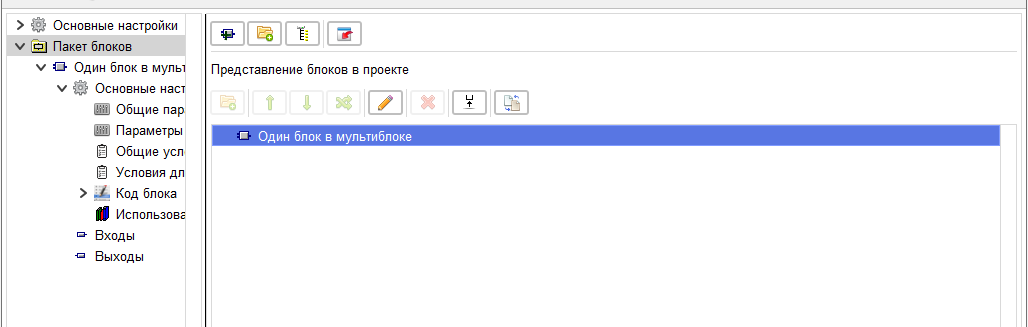
The "Block Package" branch
This branch is intended for creating new blocks, groups, and folders of the multiblock block package.
In addition, on this branch, the view of displaying blocks in the library of user blocks of the program is configured.
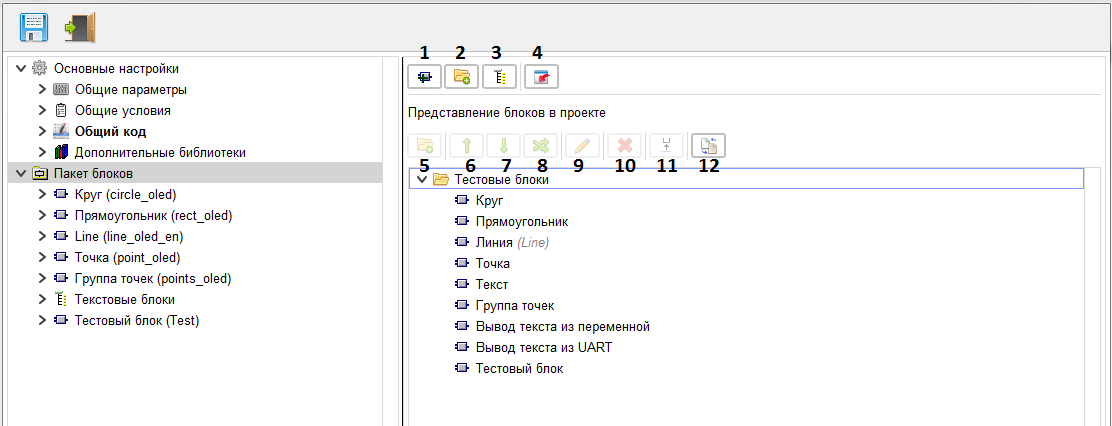
When you click the "New block" button»(1) a new block is created, and the transition to its main branch takes place.
When you click on the "New folder" button(2), a new folder is created, and you switch to its branch.
When you click on the "New group" button (3), a new group of blocks is created, and you go to the main branch of the created group.
When you click the "Import block or library" button (4), a window opens for selecting a block file or a block library. The block or library file selection field is loaded into the package.
In addition, on this branch, the view of displaying blocks in the library of user blocks of the program is configured.
When you click the "New block" button»(1) a new block is created, and the transition to its main branch takes place.
When you click on the "New folder" button(2), a new folder is created, and you switch to its branch.
When you click on the "New group" button (3), a new group of blocks is created, and you go to the main branch of the created group.
When you click the "Import block or library" button (4), a window opens for selecting a block file or a block library. The block or library file selection field is loaded into the package.
Attention!
Only blocks created in the old editor (Basic) are imported. If the downloaded library contains blocks created in the Professional editor, they will not be imported, but will be skipped.
You can use the block view editor to set the type of block display in the custom block library.
By default, they are displayed in a simple list in the order they were added to the multiblock. The name of the root folder always corresponds to the name specified in the main multiblock settings.
The representation of blocks in this editor has nothing to do with their location in the tree of the multiblock editor and does not affect it in any way.
Use the "Create virtual folder" button (5) to create a new virtual folder for the block view.
Use the Up(6) and Down buttons»(7)the selected item is moved within the parent folder.
Using the "Free move" button (8) , you can move the selected item (block or virtual folder) to any available location (if a virtual folder is selected – it cannot be moved to itself or to the virtual folders attached to it).
Using the "Edit" button (9), you can change the name of a virtual folder, and set an alternative name for the block, under which it will be displayed in the library of custom blocks. If you change the name of the root folder – the new name will be entered and the General settings of the multiblock.
Using the "Delete folder" button (10), you can delete a virtual folder, and its contents will be transferred to the parent virtual folder.
Using the "Go to block" button (11), you can immediately go to the main branch of the selected block.
Using the "Synchronize with editor tree" button (12), you can recreate the display tree according to the editor tree. Subsequent changes to the editor tree will not change the display tree until you click the "Sync with editor tree" button again (12). Newly created blocks will be added to the end of the list of blocks.
An example of the construction of the render tree.
The representation of blocks in this editor has nothing to do with their location in the tree of the multiblock editor and does not affect it in any way.
Use the "Create virtual folder" button (5) to create a new virtual folder for the block view.
Use the Up(6) and Down buttons»(7)the selected item is moved within the parent folder.
Using the "Free move" button (8) , you can move the selected item (block or virtual folder) to any available location (if a virtual folder is selected – it cannot be moved to itself or to the virtual folders attached to it).
Using the "Edit" button (9), you can change the name of a virtual folder, and set an alternative name for the block, under which it will be displayed in the library of custom blocks. If you change the name of the root folder – the new name will be entered and the General settings of the multiblock.
Using the "Delete folder" button (10), you can delete a virtual folder, and its contents will be transferred to the parent virtual folder.
Using the "Go to block" button (11), you can immediately go to the main branch of the selected block.
Using the "Synchronize with editor tree" button (12), you can recreate the display tree according to the editor tree. Subsequent changes to the editor tree will not change the display tree until you click the "Sync with editor tree" button again (12). Newly created blocks will be added to the end of the list of blocks.
An example of the construction of the render tree.
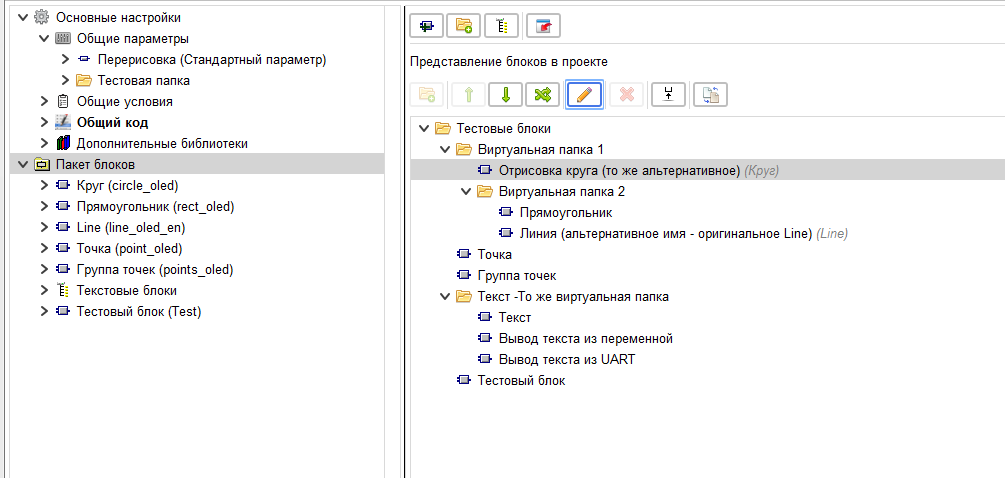
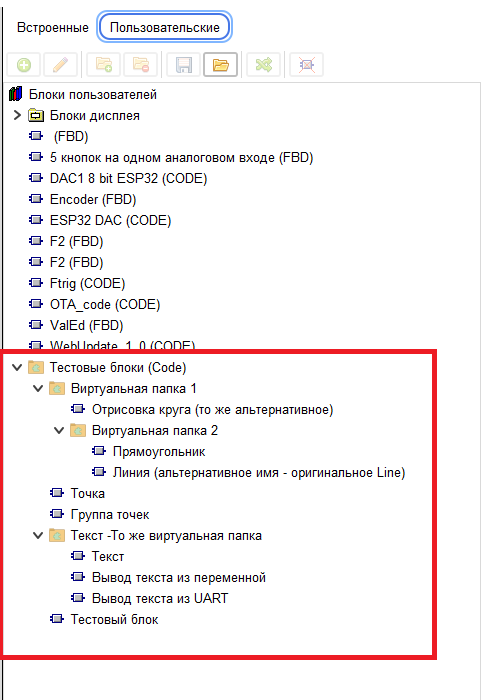
And this is what it looks like in the library
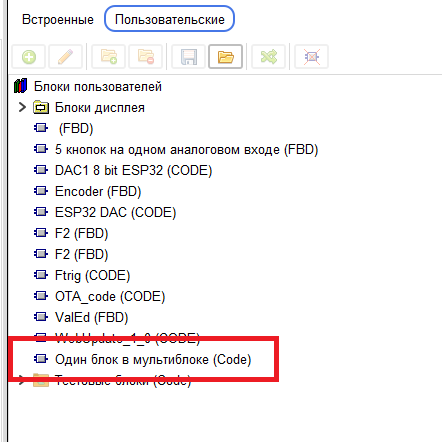
If a multiblock is represented by a single block, then no manipulations can be performed with the display, it is displayed as a single block in the library.