
The "Condition" Branch
This branch is the editor of a condition that is a Boolean expression.
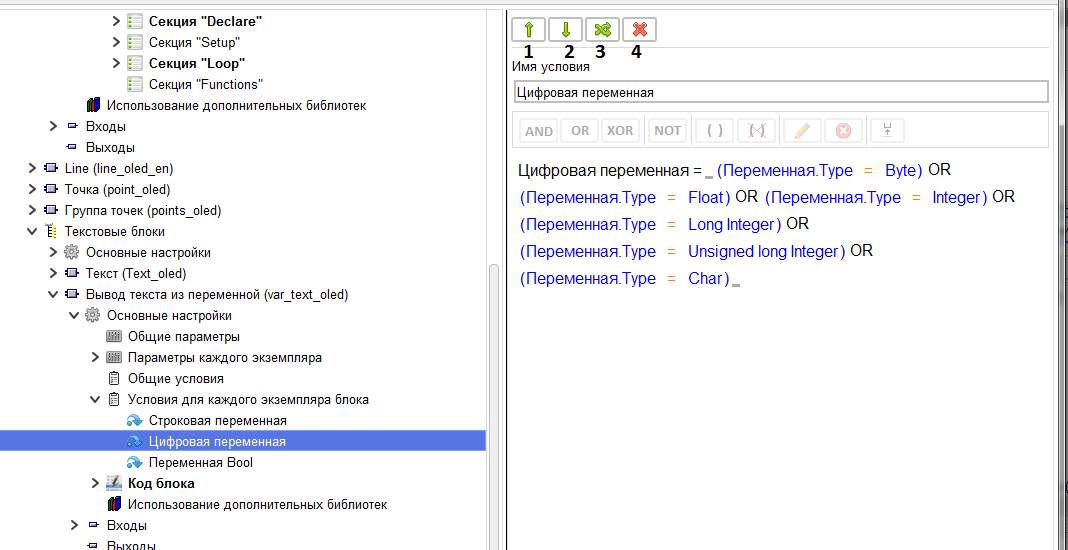
On this branch, the condition name is set, and a logical expression is created.
Use the up and down buttons (1, 2) to move the condition within the parent folder. Using the free move button (3), the condition is moved to any location of the multiblock and blocks.
Use the "Delete condition" button (4) to delete the condition.
Initially, the new condition contains only one empty sub-condition.
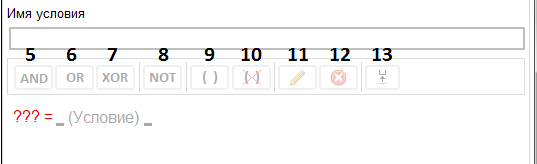
Use the up and down buttons (1, 2) to move the condition within the parent folder. Using the free move button (3), the condition is moved to any location of the multiblock and blocks.
Use the "Delete condition" button (4) to delete the condition.
Initially, the new condition contains only one empty sub-condition.
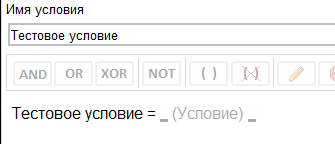
When you specify a condition name, it is inserted as a result in the formula.
When you click on a sub-condition, it is highlighted, and the "NOT" (8), "edit sub-condition" (11) buttons become available.
Using the "NOT" button (8), you can set or remove the negation of the sub-condition result.
Using the "NOT" button (8), you can set or remove the negation of the sub-condition result.

When you click the Edit button (11) or double-click on a sub-condition, the sub-condition editing window opens.
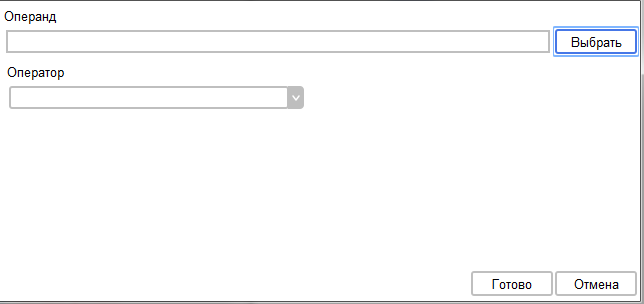
In this window, you must first select the operand by clicking on the "Select" button.
This opens the operand selection window, which displays the system values and parameter tags available for a specific condition location.
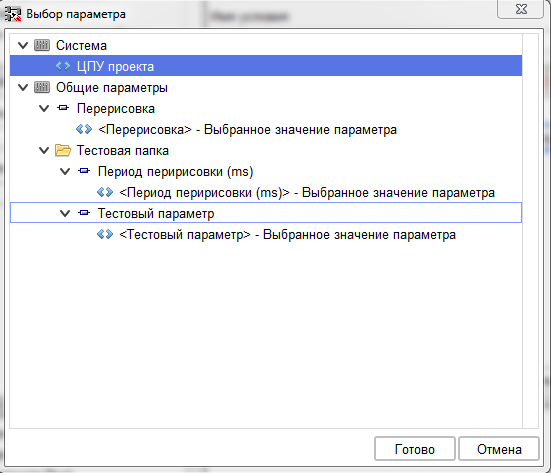
After selecting the tag, a list of operands will be available, and an introduction or selection of a possible value will be available.
The list of operands, as well as the choice of values, depends on the selected tag. For example, for the numeric value of a standard parameter, such a list of operands is created.
The list of operands, as well as the choice of values, depends on the selected tag. For example, for the numeric value of a standard parameter, such a list of operands is created.
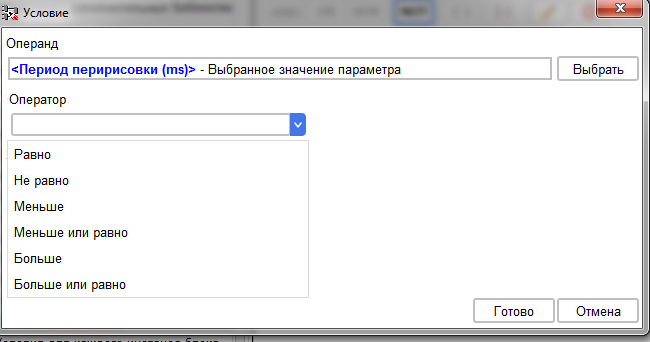
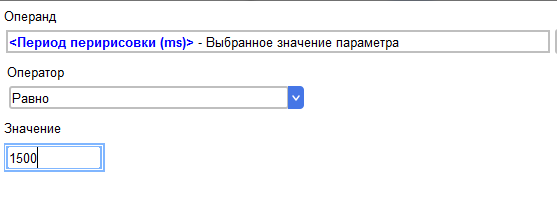
And the value is entered by simple input
And for the system value "project CPU", the list of operands is different
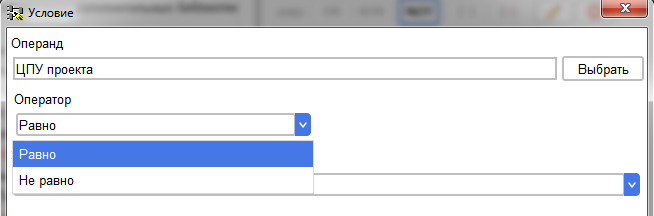
And the value is already selected from the drop-down list.
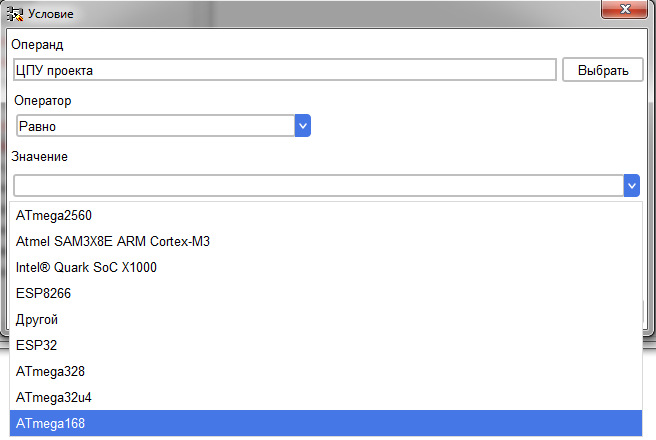
After filling in all the fields, the "Done" button is clicked and the configured sub-condition is sent to the editor.
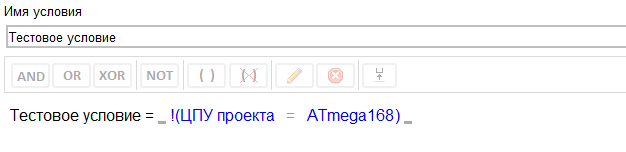
To the right and left of each sub-condition there are places to set logical operators.
When you click on any of them, it is highlighted, and the "AND"(5), "OR"(6), "XOR" buttons become active»(7) and "Change"(11).
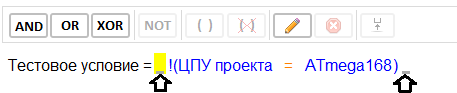
When you press the "AND"(5), "OR"(6), "XOR"(7) buttons, the corresponding logical operator is immediately inserted into the selected place,
and when you click on the "Edit"button(11) or double-click on the selected place to insert the logical operator, the operator selection window opens.
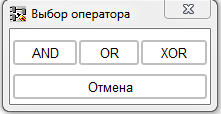
After inserting the selected statement, a new empty sub-condition is automatically created.

The new sub-condition is filled in the same way as the first one. Thus, you can create the necessary number of sub-conditions to create the desired condition logic.

To combine several sub-conditions into one parenthesis, select the sub-conditions that need to be combined. This can be done either with the right mouse button or with the left mouse button held down
press Ctrl on the keyboard.

If you select more than one sub-condition, the "() " button (9) becomes active. when you click it, the selected sub-conditions are closed with parentheses.

When you click on an opening or closing bracket that combines several sub-conditions (green), the entire block that is included in these brackets is highlighted.

In this case, the "NOT"(8) and "(x)"(10) buttons become available when the "NOT"(8) button is pressed, the inversion of the result of the selected block of sub-conditions is set or removed.

When the "(x)"(10) button is pressed, the selected block is ungrouped.
You can create other blocks with any nesting depth inside the subcondition block.
You can create other blocks with any nesting depth inside the subcondition block.

When selecting a single sub-condition, if it contains a parameter tag as an operand, you can use the "Go"button(13) to go directly to the settings of this parameter.
And using the "Delete" button (12), you can delete the selected sub-condition.
And using the "Delete" button (12), you can delete the selected sub-condition.