
The branch parameter
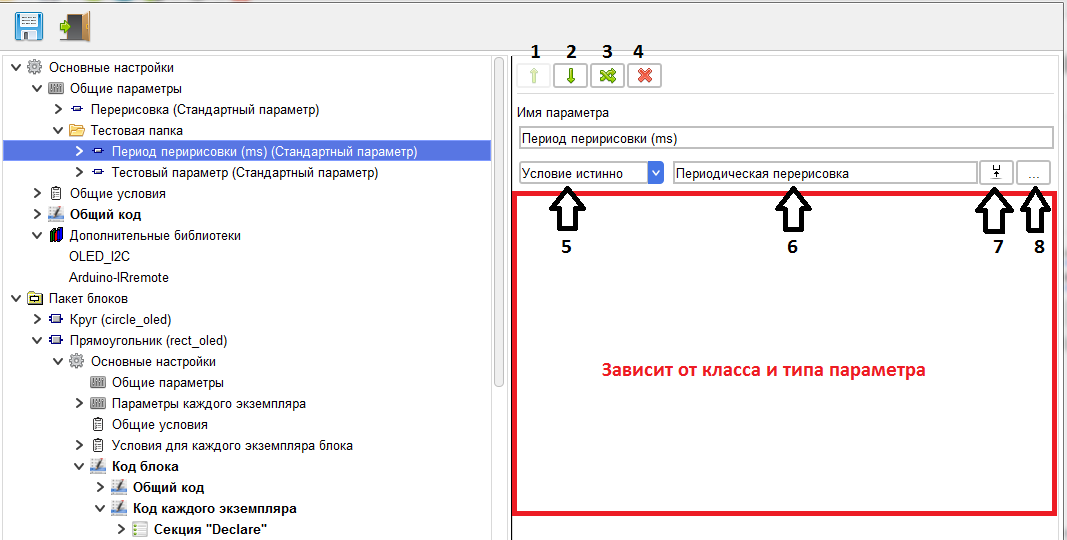
On this branch, you can set the parameter name, configure the visibility of the parameter depending on the conditions, and configure the parameter properties
The parameter properties panel depends on the parameter class and is viewed on the corresponding help page.
This page discusses common settings for all classes.
Use the up and down buttons (1, 2)to move the parameter within the parent folder.
Using the free move button (3), the parameter is moved to any location in the multiblock and instances.
Use the "Delete parameter" button (4) to delete the parameter.
Using the "setting visibility condition" combo box (5), you can set a condition that will set the visibility of this parameter when using the block in the project.< br> three values are Available.
- 1."No condition" - when this value is selected, the parameter is always visible.
- 2."Condition true" - when this value is selected, the parameter is visible if the selected condition is met.
- 3. «Условие ложно» - при выборе данного значения параметр виден, если выбранное условие не выполняется.
Use the "select condition" button (8) to select a previously created condition. When you click it, a window opens that shows the conditions available for this parameter.
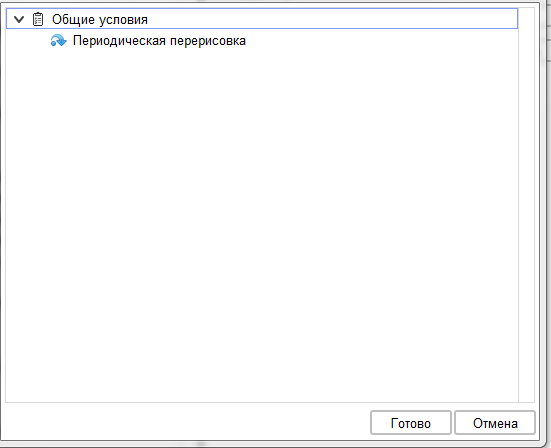
After selecting a condition, its name is displayed in the field (6).
With the selected condition, use the "Go to condition" button»(7) you can go to the branch of the selected condition, for example, to edit it.
With the selected condition, use the "Go to condition" button»(7) you can go to the branch of the selected condition, for example, to edit it.